
Quick answer: Use DVB Broadcast Live Explorer to find a service observed by SATLINE receivers and record its feed, tuning, and DVB identifiers. Before acting, read three separate timestamps: when the inventory was published, when the receiver last checked lock, and when Feed C/N was measured. None of those alone proves how a stream is being delivered now.
1. Start with the inventory timestamp
Open DVB Broadcast Live Explorer and note the UTC timestamp next to Cached inventory. The site checks for new snapshots every five minutes; the upstream inventory typically publishes about hourly. The Refresh button reloads available data. It does not tune a receiver or start a scan.
The inventory covers published satellite and terrestrial observations from the feeds shown. It is not a list of every service a satellite carries. On mobile, use the feed selector under Broadcast feeds.
2. Search for Das Erste HD
Start with All feeds. Enter Das Erste HD in the search box. Open Filters and set Access to clear to limit results to services identified as free-to-air. Filters combine, so check the active chips before deciding a service is missing.
Search covers all feeds. Selecting a feed card leaves search and lets you browse that feed. If matching services appear more than once, note the reception feed, site, beam, and RF band where shown. This matters when the same service name is used on several networks.
3. Record the carrier settings
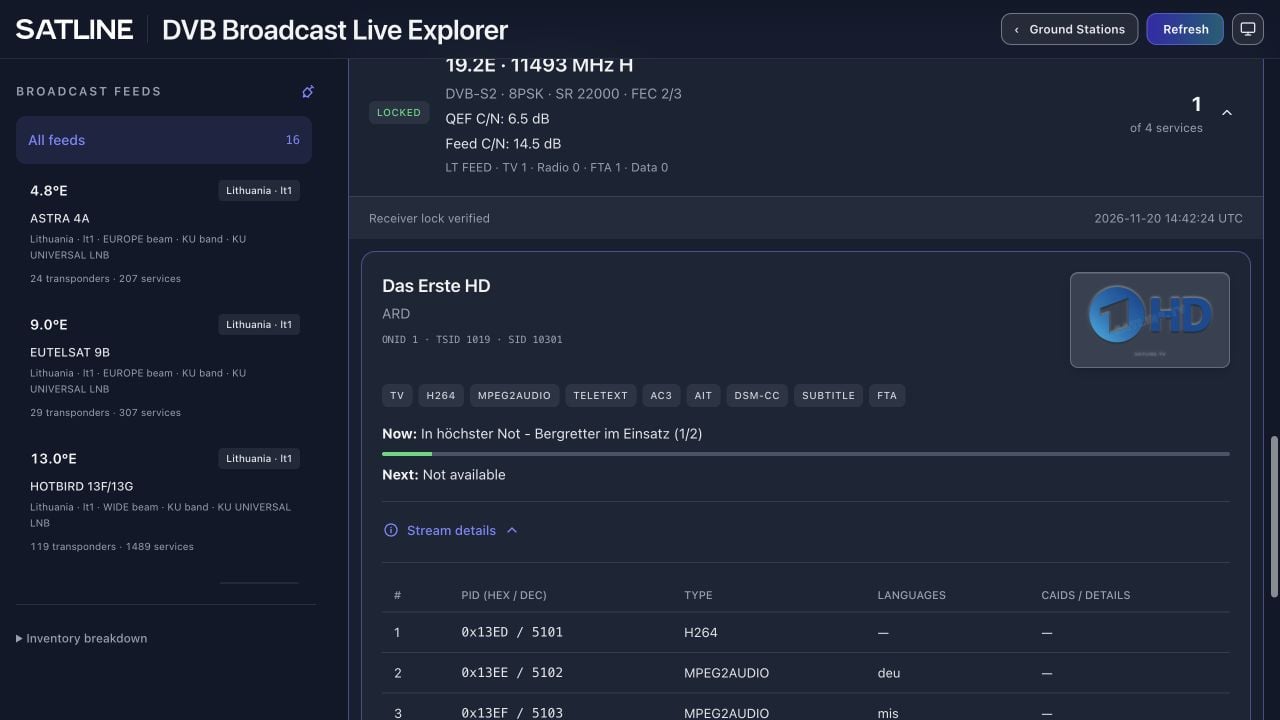
The worked example matched the Lithuania feed at 19.2°E · 11493 MHz H. The transponder row showed DVB-S2, 8PSK, SR 22000, FEC 2/3. Record the values as shown, including units: 22,000 ksym/s is 22 Msym/s. On another carrier, you may also need the published ISI and PLS settings for multistream or the T2-MI PID and PLP for the intended stream.
Expand the transponder to see its matching services. In this example, the filter returned one of four listed services on that multiplex. That count describes the inventory and the filter, not the number of tuner locks you need. See the tuner sizing guide for that decision.
4. Read the three clocks separately
The inventory badge describes the dataset. The expanded transponder shows the last published receiver check. Feed C/N is a separate measurement; hover over the value on desktop to see its timestamp when published. On a touch screen where the tooltip is not available, read the lock timestamp and check measurement age on desktop before treating the number as fresh.
| Field | Observed example | What it means |
|---|---|---|
| Inventory | 15:12:38 UTC | When the upstream snapshot was published. |
| Receiver lock | Verified at 14:42:24 UTC | Result of the last published receiver check for this observation. |
| Feed C/N | 14.5 dB at 07:57:39 UTC | A recorded measurement for this feed, more than seven hours older than the inventory. |
| QEF C/N | 6.5 dB | A theoretical quasi-error-free reference for the listed mode, not a measured reading or an uptime promise. |
Do not present the difference between the two dB figures as current operating margin. Check the reference bandwidth, mode assumptions, measurement time, and required margin first. A No lock badge can describe a candidate or offline inventory entry; read the last receiver check before treating it as an outage.
5. Confirm the service IDs and PIDs
On the Das Erste HD service card, record ONID 1 · TSID 1019 · SID 10301. Then open Stream details. The captured observation showed H.264 video on PID 0x13ED (5101) and German MPEG audio on PID 0x13EE (5102), among other rows.
Keep those identifiers with the reception feed and transponder. They give the operator a better reference than a channel name alone. The logo and Now/Next are cached separately and may be absent or delayed. They are not proof that a service is currently on air.
6. Check for changes before updating a lineup
Open the Broadcast change log to check what the inventory detected: additions, removals, renames, or moves. Use a feed card to narrow the log to that reception feed, then use Show more changes to expand it. Where a move is recorded, compare the old and new tuning and DVB identifiers. Treat the event time as a recorded observation, not a guaranteed broadcaster change time.
If a change points to an older transponder that is no longer in the current inventory, keep the historical record and verify the replacement in a new scan rather than guessing from the service name.
7. Turn the observation into a handover record
Record the feed and site, orbital position or terrestrial frequency, tune parameters, ONID/TSID/SID, relevant PIDs, the three timestamps, and any change-log event. If you are evaluating a hosted feed, verify the delivered transport stream separately: capture a sample, check the published IDs and PIDs, and monitor continuity and bitrate.
Use the TS Packet Analyzer to inspect bytes you already captured. Explorer is an inventory, not a playback service or order page. An FTA flag describes observed scrambling status; it does not grant distribution rights.
Frequently asked questions
Is every lock or C/N reading live?
No. Read the separate time for the receiver check or measurement. The inventory itself can be newer than either observation.
Can I find encrypted services?
Yes. Set Access to scrambled and use the CA system filter if information is published. The filter describes detected conditional access, not decoding or viewing rights.
Why is a channel missing even though I expected it?
Check the search spelling, active filters, reception site, beam, band, and snapshot date. The published inventory is limited to observations in the feeds shown. A missing entry is not proof the channel stopped broadcasting.
About the author
Gleb Sazanov is SATLINE’s CTO and project lead. The worked example was checked in the public tool on .